In this update, we added several new features and improvements to make Trade Manager for MT4 and MT5 more flexible, clearer, and easier to use in real trading.
Here is the list of changes in Trade Manager version 3.70:
- Automatic Lot Size Calculation for Trades Opened from the MT5 Mobile App
- Magic Number Filter Now Available Directly in the Trade Manager Configuration Tab
- Common Break Even Point for Multiple Trades
- Asynchronous Fast Trade Closing for MT5
- More Detailed User Messages and Clearer Error Information
- Automatic Settings Adjustment When Conflicts Are Detected
- Extended Color Settings for Trade Information Bars
- Bug Fixes and Improvements
Automatic Lot Size Calculation for Trades Opened from the MT5 Mobile App
Many traders use the MetaTrader 4 or MetaTrader 5 mobile app when they are away from their main trading desk, but mobile apps do not allow additional tools or advanced lot size calculators to run directly inside them.
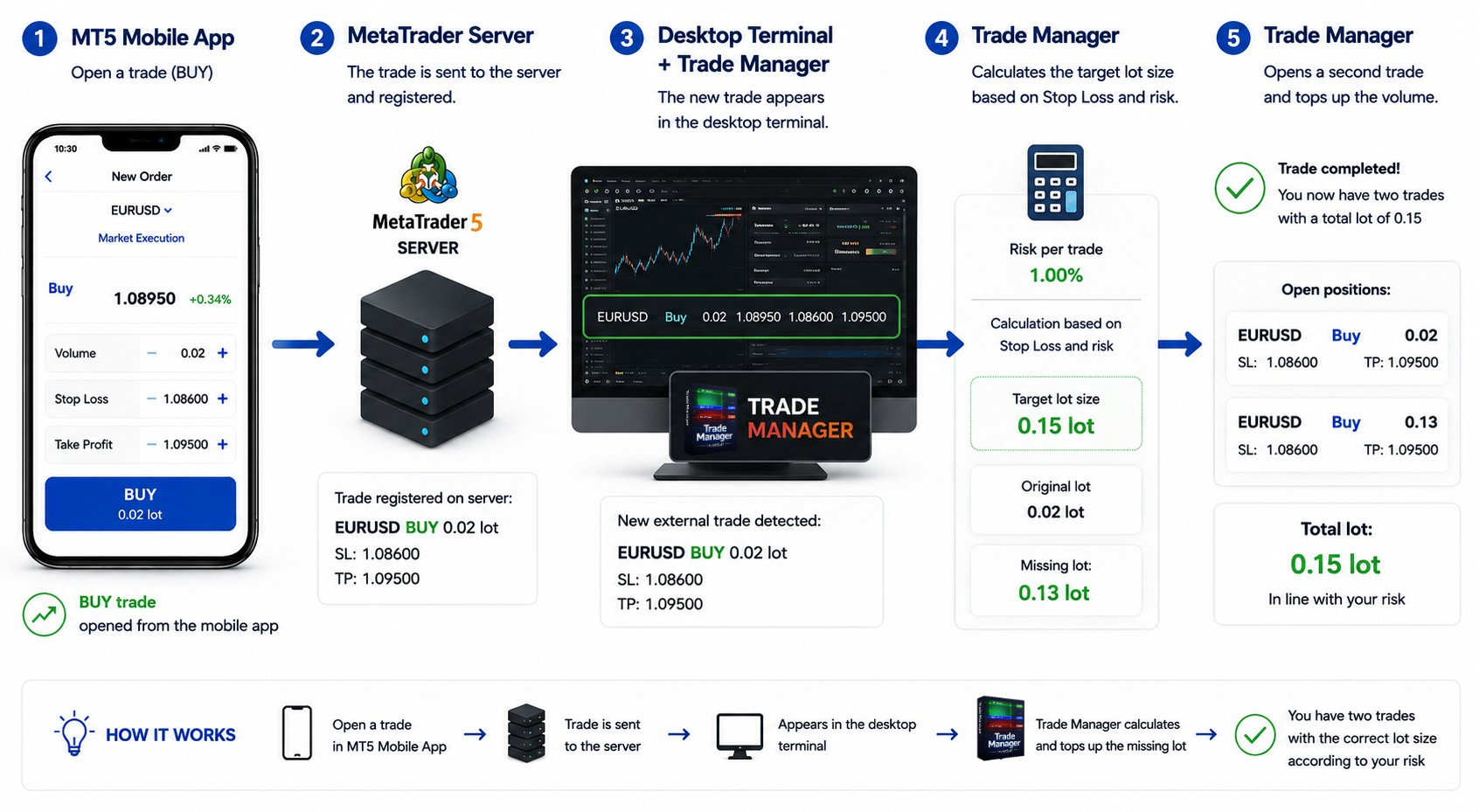
In Trade Manager 3.70, we added a new External Lot Calculation feature that helps solve this problem. When Trade Manager is running on your desktop MetaTrader platform or VPS, it can detect trades opened outside the Trade Manager panel, for example from the MT5 Mobile App, and calculate the correct lot size based on your risk settings and Stop Loss.
For market orders, Trade Manager opens an additional trade with the same Stop Loss and Take Profit to complete the missing volume. For example, if you open 0.02 lot from the mobile app, but the correct risk based lot size should be 0.15, Trade Manager can open an additional 0.13 lot position.
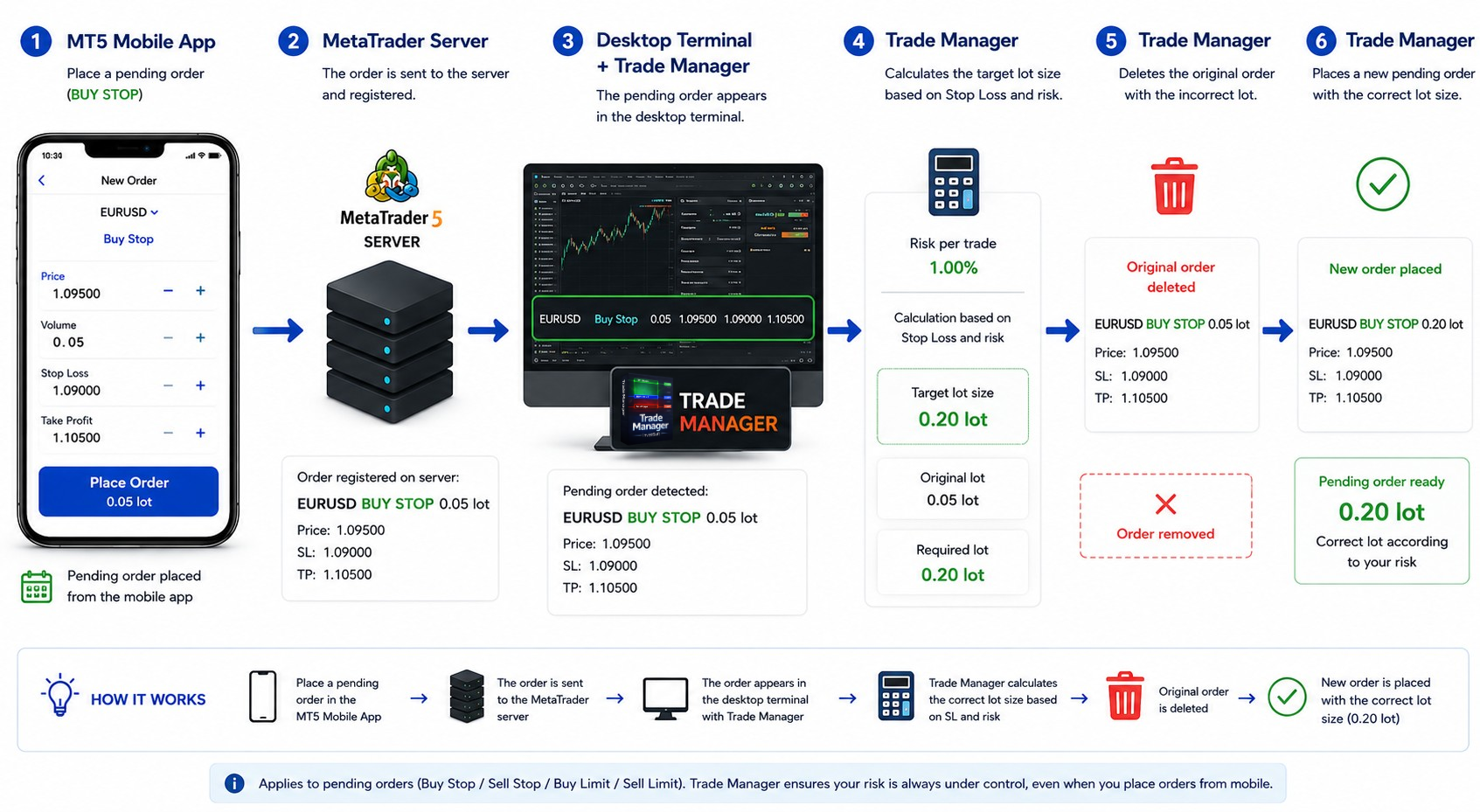
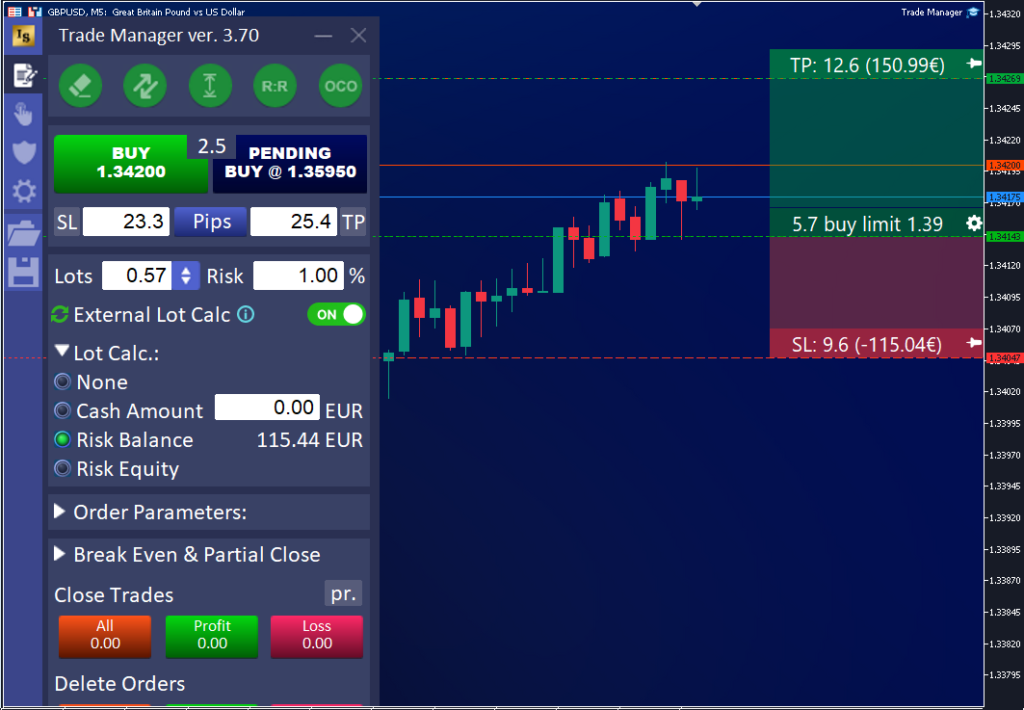
For pending orders, Trade Manager removes the original pending order, keeps its key parameters such as entry price, Stop Loss and Take Profit, calculates the correct lot size, and places the pending order again with the correct volume.
How to Enable External Lot Calculation
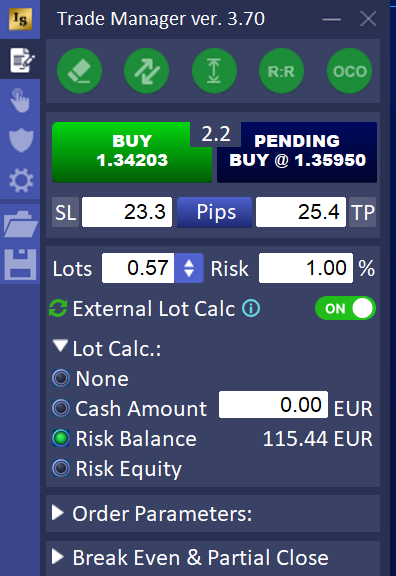
To use this feature, open the main Trade Manager panel and go to the first tab. Under the lot size and risk selection area, you will find the External Lot Calc option.
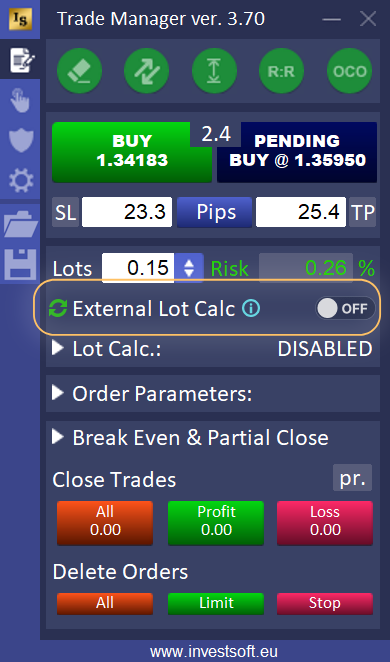
To activate it, simply click the OFF switch and change it to ON.
However, for this feature to work correctly with trades opened outside Trade Manager, you need to disable the Magic Number filter. By default, Trade Manager manages only trades opened by Trade Manager with its own Magic Number. If this filter stays enabled, Trade Manager may ignore trades opened from the MT5 Mobile App, MT4 Mobile App, web terminal, or another external source.
If the Magic Number filter is still active when you enable External Lot Calc, Trade Manager will display a warning message. It will inform you that the Magic Number filter must be disabled to allow external trade detection.
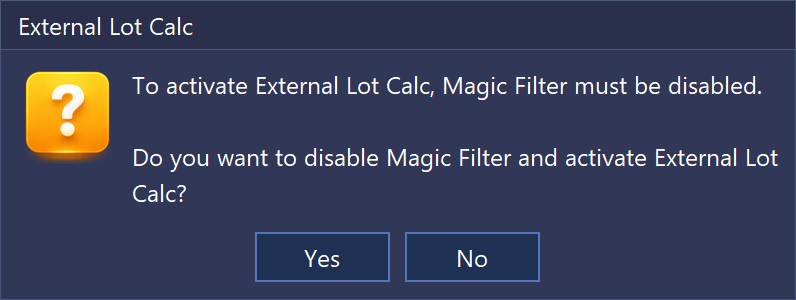
After you confirm the message, Trade Manager will automatically disable the Magic Number filter in the configuration tab and enable External Lot Calc.
After that, you can select your preferred lot calculation mode, for example Risk Balance, define the risk value, and Trade Manager will be ready to calculate lot size for trades opened from the mobile app or another external trading interface.
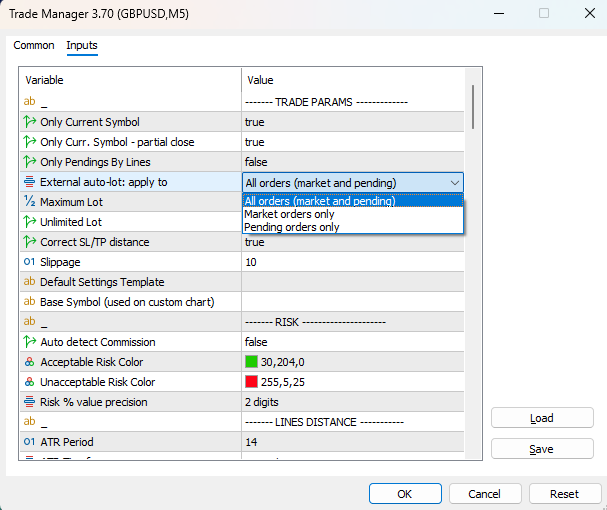
You can also decide which types of external trades should be handled by this feature. In the standard Trade Manager settings, use the External auto-lot: apply to option to choose whether automatic lot calculation should be applied to pending orders only, market orders only, or all external trades.
Placing Orders from the MT5 Mobile App
After enabling External Lot Calc and setting your risk parameters in Trade Manager, you can open the MT5 Mobile App and log in to the same trading account that is running on your desktop MetaTrader platform or VPS.
When placing an order from the mobile app, it is important to set a Stop Loss. Trade Manager needs the Stop Loss level to calculate the risk and determine the correct lot size. Take Profit is optional, but if it is added, Trade Manager can also copy it to the adjusted trade or recreated pending order.
For example, you can place a Buy Limit order from the MT5 Mobile App with the minimum lot size, such as 0.01 lot, and set your entry price, Stop Loss, and optionally Take Profit.
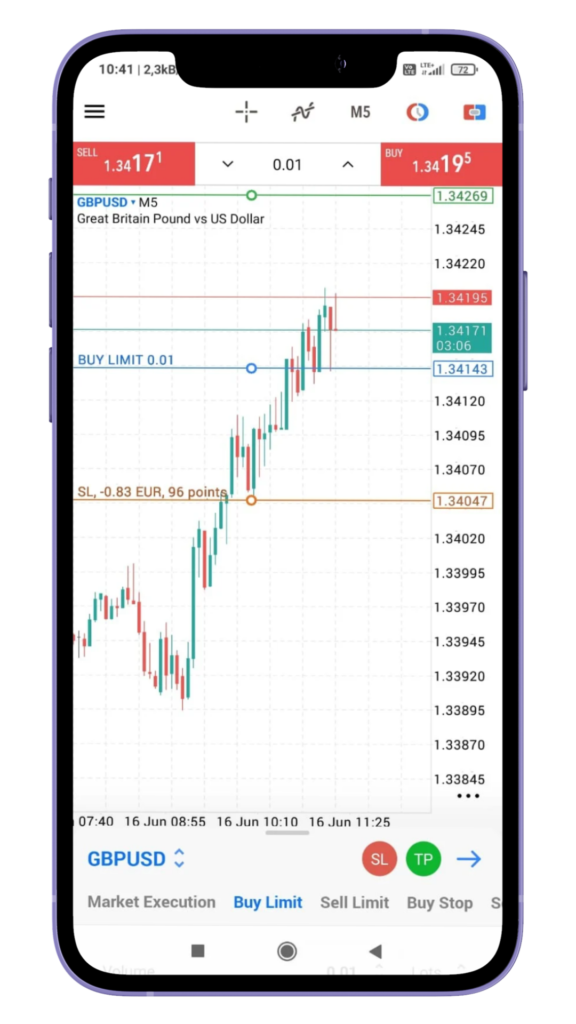
After the pending order appears on the account, Trade Manager detects it, calculates the correct lot size based on your risk settings, removes the original pending order, and places it again with the correct volume.
For market orders, the process is slightly different. You can open a Buy or Sell trade from the MT5 Mobile App with a small lot size, for example 0.01 or 0.02 lot.
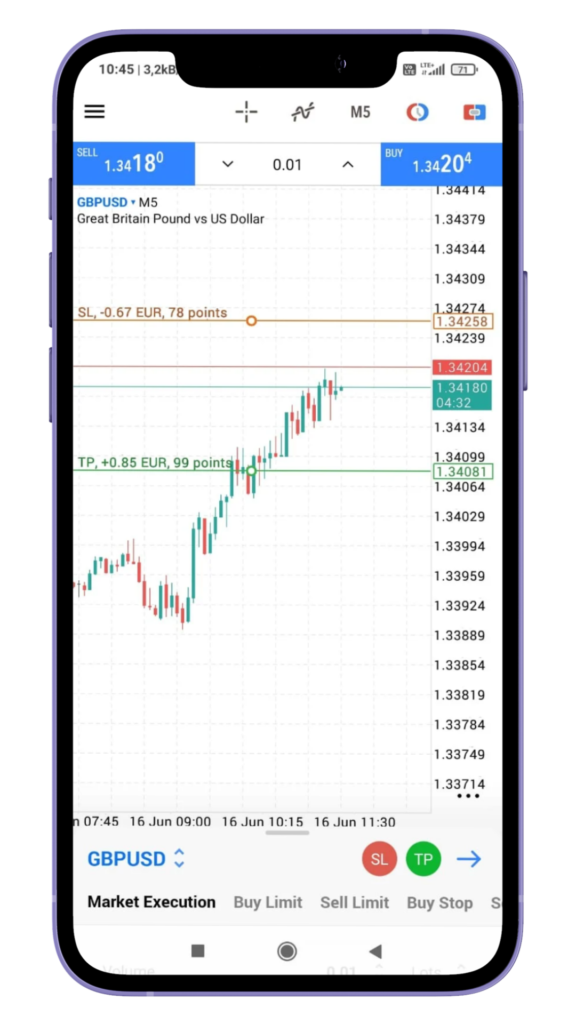
Trade Manager will detect the new market position, read its Stop Loss, calculate the target lot size, and open an additional market position with the missing volume. As a result, the total position size matches the risk defined in Trade Manager.
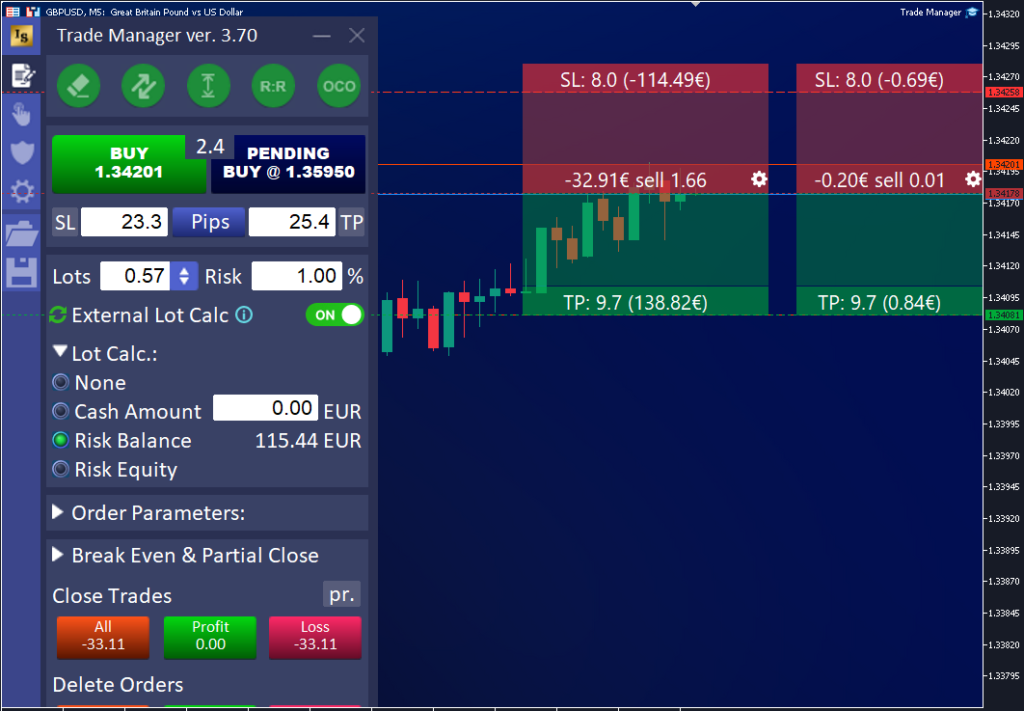
To make mobile trading even faster, you can also use the automatic Stop Loss and Take Profit settings in Trade Manager. This is useful if you often use a fixed Stop Loss distance, a fixed price level, or another predefined method such as ATR based Stop Loss. In that case, you can open a simple Buy or Sell trade from the mobile app, and Trade Manager can automatically set the Stop Loss, calculate the correct lot size, and adjust the trade according to your risk settings.
You can find more details about automatic Stop Loss and Take Profit settings in the Trade Manager user guide here: https://www.investsoft.eu/blog/2021/11/30/trade-manager-user-manual/#Automatic_Stop_Loss_or_Take_Profit_setting_in_the_order.
Magic Number Filter Now Available Directly in the Trade Manager Configuration Tab
In Trade Manager 3.70, we moved the Magic Number filter from the standard Trade Manager input settings to the fourth tab of the Trade Manager panel, the Configuration tab.
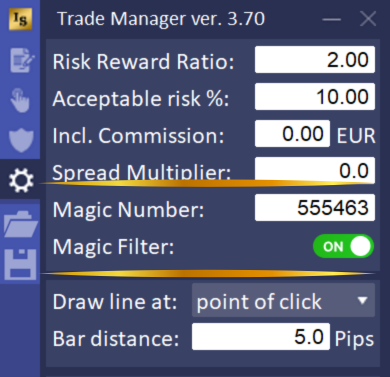
This change makes the feature much easier to control during normal use. You no longer need to reopen or reload Trade Manager just to change how trade filtering works. The Magic Number filter can now be enabled or disabled directly from the panel.
This is especially useful because some Trade Manager functions require this filter to be disabled. For example, when using External Lot Calculation for trades opened outside Trade Manager, the program must be able to detect trades placed from the mobile app, web terminal, or another external source. If Magic Number filtering is enabled, those trades may be ignored.
By moving this option to the Configuration tab, Trade Manager can also handle some conflicts automatically. When a feature requires Magic Number filtering to be disabled, Trade Manager can show a confirmation message and, after your approval, adjust the setting automatically.
The Magic Number value itself has also been moved to the Configuration tab, so both the filter switch and the Magic Number definition are now available directly inside the Trade Manager panel.
Common Break Even Point for Multiple Trades
Break Even is one of the most useful risk management functions for traders who open more than one position at the same time. It is especially helpful for traders who scale into positions, open several trades on the same symbol, or manage a group of trades as one larger position.
In previous versions of Trade Manager, you could move Stop Loss to Break Even individually for each open trade. This means that after clicking the Move SL to BE button, Trade Manager calculated the Break Even level separately for every position. In most cases, this level was simply the entry price of each trade.
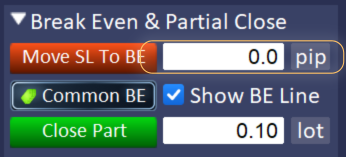
In Trade Manager 3.70, this section has been expanded with a new Break Even mode. You can now switch between Single BE and Common BE.
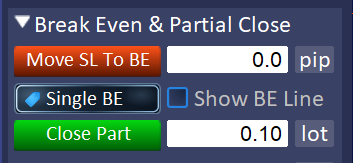
When Single BE is selected, Trade Manager works as before. Each trade is treated individually, and Stop Loss is moved to the Break Even level of each separate position.
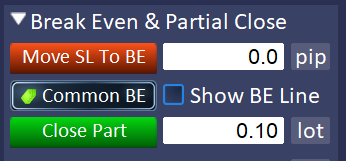
When Common BE is selected, Trade Manager calculates one shared Break Even point for all currently open trades. This is useful when you want to manage several trades as one group instead of treating each position separately.
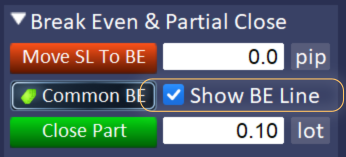
You can also display this level directly on the chart. To do this, enable the Show BE Line checkbox. If there are open trades on the chart, Trade Manager will draw the Common Break Even level so you can clearly see where the shared Break Even point is located.
If all open trades are in the same direction, for example only Buy trades or only Sell trades, the Common Break Even is displayed as a single line.
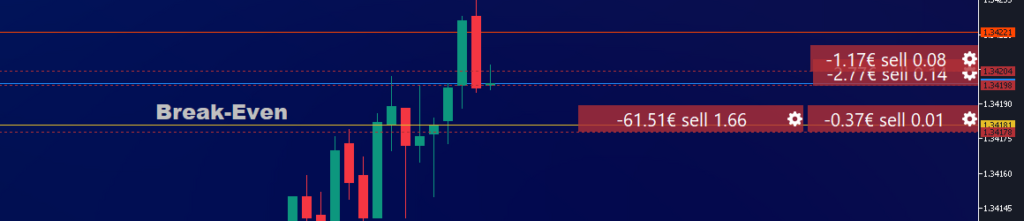
If there are both Buy and Sell trades open at the same time, Trade Manager displays a Break Even zone instead of one single line. This is because Buy and Sell trades are closed using different prices. Some positions are closed at Bid price and others at Ask price, so the real Break Even area depends on the spread. In most cases, the width of this zone is related to the average spread.
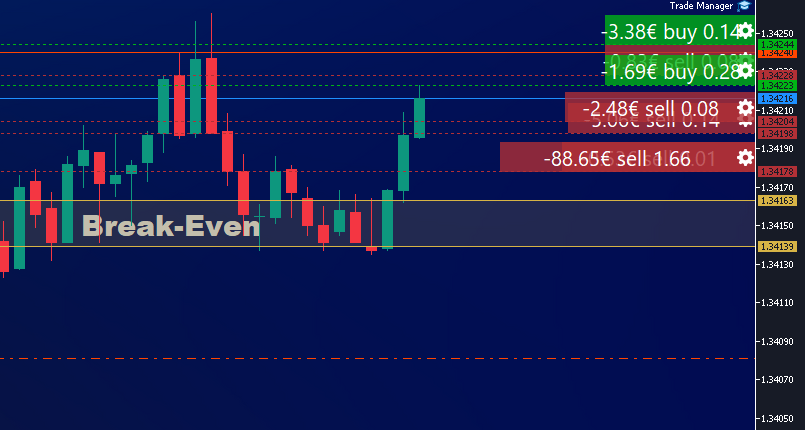
When you click Move SL to BE in Common BE mode, Trade Manager moves Stop Loss levels for the selected trades to the calculated Common Break Even level or zone. For mixed Buy and Sell positions, some Stop Loss levels may be placed on one side of the zone and others on the opposite side.
Next to the Move SL to BE button, there is also an offset field. You can use it to move the Break Even level slightly beyond the exact Break Even point, for example to cover spread, swap, commission, or possible slippage. The offset can be set in pips, or you can define a specific price level.
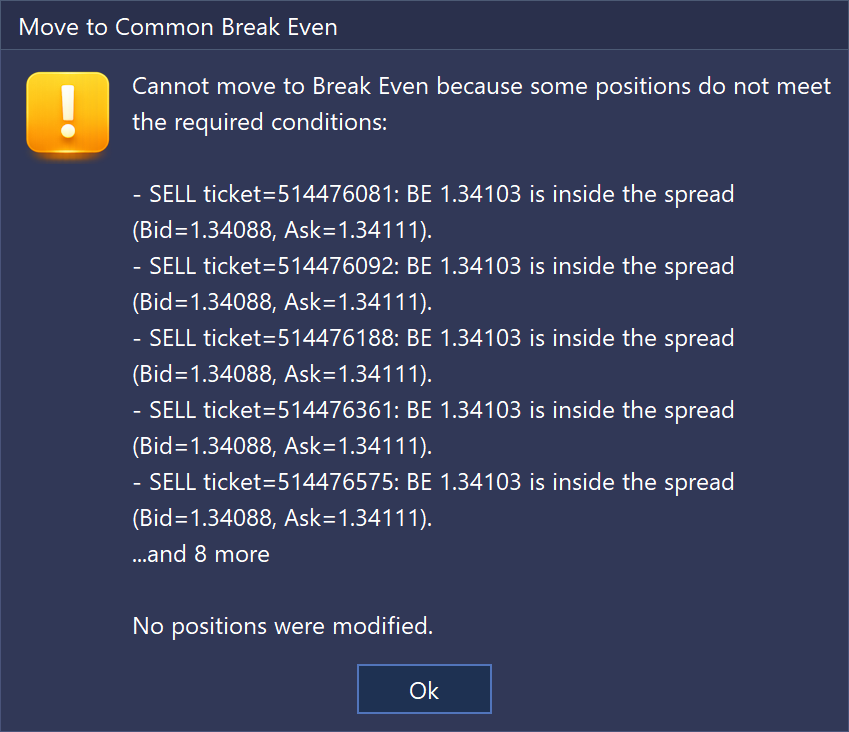
If Trade Manager cannot move Stop Loss to the selected Break Even level, it will display a detailed message explaining why the operation could not be completed. This makes it easier to understand whether the problem is caused by broker limits, minimum Stop Loss distance, invalid price level, or another trading condition.
The appearance of the Common BE line and zone can be customized in the standard Trade Manager settings window. Press F7 and open the Common BE Line Styles section. There you can define the line color, line style, line width, zone fill visibility, fill color, transparency, and text appearance, including font, font size, and text color.
Asynchronous Fast Trade Closing for MT5
We also improved the trade closing process in the MT5 version.
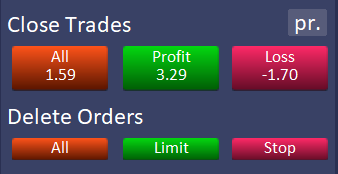
Trade Manager includes buttons that allow you to quickly close selected groups of trades, for example all trades, profitable trades, losing trades, Buy trades, or Sell trades. You can also delete selected groups of pending orders, such as all pending orders, Limit orders, or Stop orders.
When many trades or pending orders are open at the same time, the speed of this operation becomes very important. For this reason, in the MT5 version of Trade Manager, we implemented asynchronous trade closing.
This means that Trade Manager can send closing or deleting requests faster, without waiting for each operation to finish one by one before sending the next request. As a result, closing a group of trades can be faster and smoother, especially when many positions need to be handled at once.
This improvement is available only in the MT5 version, because MetaTrader 5 provides the required asynchronous trading functions.
For traders, this can be especially useful during fast market conditions, when they need to close several positions quickly, reduce exposure or exit a group of trades without unnecessary delay.
More Detailed User Messages and Clearer Error Information
We improved and expanded the message system to make the program easier to understand during everyday use.
When something cannot be done, or when a specific setting blocks another function, Trade Manager now tries to display a clear message explaining what happened and why the action could not be completed.
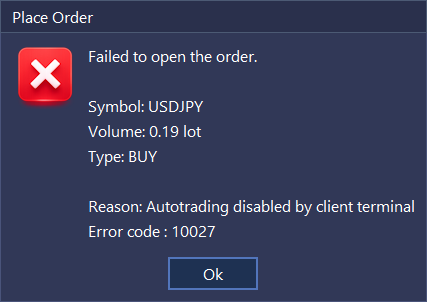
Where possible, Trade Manager now shows a detailed message box with information about the issue, the reason behind it, or the action that needs to be confirmed. This should make troubleshooting easier and help users understand what the program is doing instead of leaving them guessing.
Automatic Settings Adjustment When Conflicts Are Detected
In Trade Manager 3.70, we also improved the way the program detects conflicts between different settings and functions.
In previous versions, some actions could not be completed until another related setting was changed manually. For example, you could not disable Stop Loss if it was required for lot size calculation, trailing stop, or another active function. In that case, you first had to find the conflicting setting, change it yourself, and only then enable or disable the function you wanted to use.
Now Trade Manager handles this in a much clearer and faster way.
When a conflict is detected, Trade Manager displays a message explaining which settings are connected and why the requested change requires another parameter to be adjusted. The program then asks if you want to apply the required changes automatically.
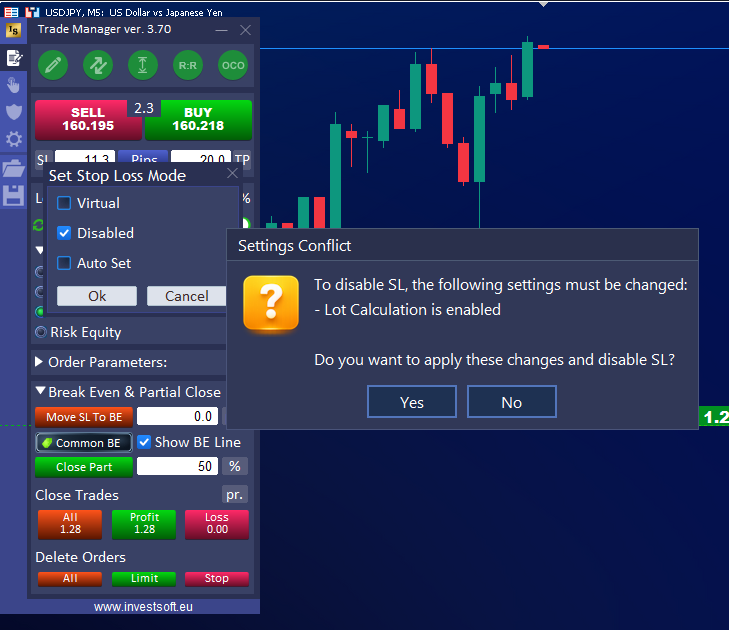
If you confirm, Trade Manager updates the conflicting settings for you and completes the original action at the same time. This means that the function you wanted to enable or disable is activated or deactivated immediately, without forcing you to search through the settings manually.
This makes configuration easier, reduces confusion, and helps prevent situations where one hidden setting blocks another feature.
Extended Color Settings for Trade Information Bars
We also expanded the color configuration options for trade levels, information bars, and background areas between the Open Price, Stop Loss, and Take Profit levels.
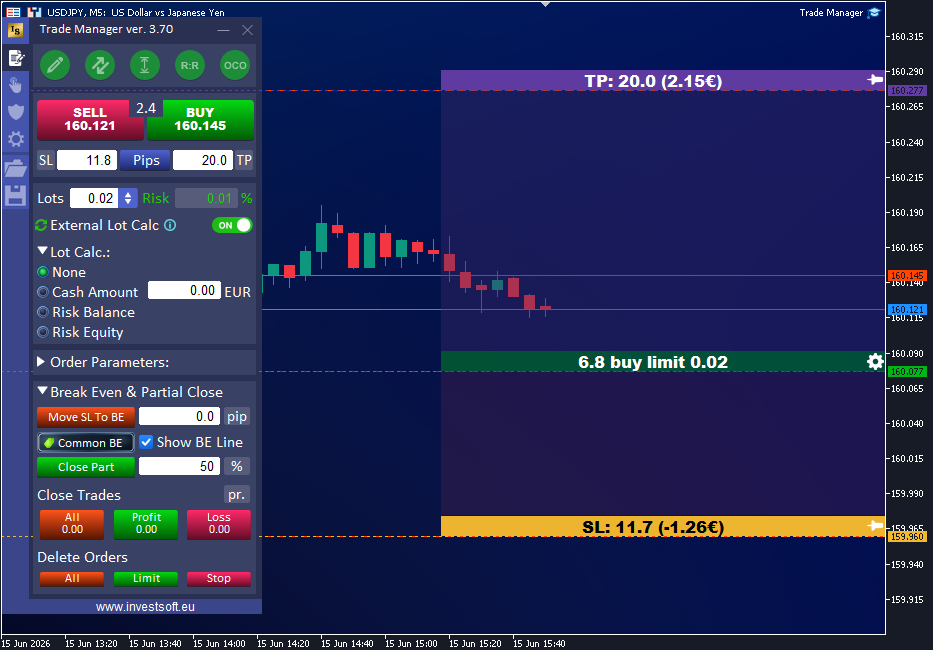
In previous versions, these colors could be configured mainly for the risk to reward block used while planning a new trade. Now the same color settings are also applied to active trades.
This means that the visual style is more consistent across the whole Trade Manager interface. The selected colors can now be used not only for planned trades, but also for open market positions and pending orders.
As a result, you now have more control over the color configuration in Trade Manager. The visual style can be more consistent across planned trades, open market positions, and pending orders. You can also adjust the colors to match your own trading style and chart template, making the MetaTrader workspace look cleaner, more modern, and easier to read.
Bug Fixes and Improvements
As with previous updates, Trade Manager 3.70 also includes several smaller fixes and improvements based on feedback reported by our users.
Among other changes, we improved the behavior of Trailing Stop and Break Even functions for futures trading. We also adjusted the redrawing of Partial Close lines on the chart and improved button status updates when the Trade Manager panel is refreshed.
These fixes make Trade Manager more stable, more consistent, and more comfortable for everyday trading.
